
 Free Edition
 Description
This document will help you reset your Central Server password. The following steps will not be applicable for technicians using Active Directory authentication or with a ServiceDesk Plus account. They must contact the Active Directory Administrator/ServiceDesk Plus Administrator to reset the password to access Central Server.
Note: You can also follow the steps mentioned in this document if the domain controller settings have been changed.
Note: This is applicable only after Central Server build # 10.1.2211.1
Steps for technician to reset his/her password
(The mail server needs to be configured before-hand to send the password reset mail. Kindly contact the administrator to configure the same)
If a technician forgets the password, the technician can reset the password by following the steps mentioned below:
Steps for Administrator to reset Technician/Administrator password manually
To reset the password of a Technician or an admin, you can contact the admin user. The following steps explain on password reset process for a technician or admin that can be done by the admin user on the web console.
Note: A user can also change his password by navigating to the user icon(top right)-> Personalize -> Change Password.
Steps for Administrator to reset his/her password using a Tool
You can reset the admin password of Central Server by following the steps mentioned below:
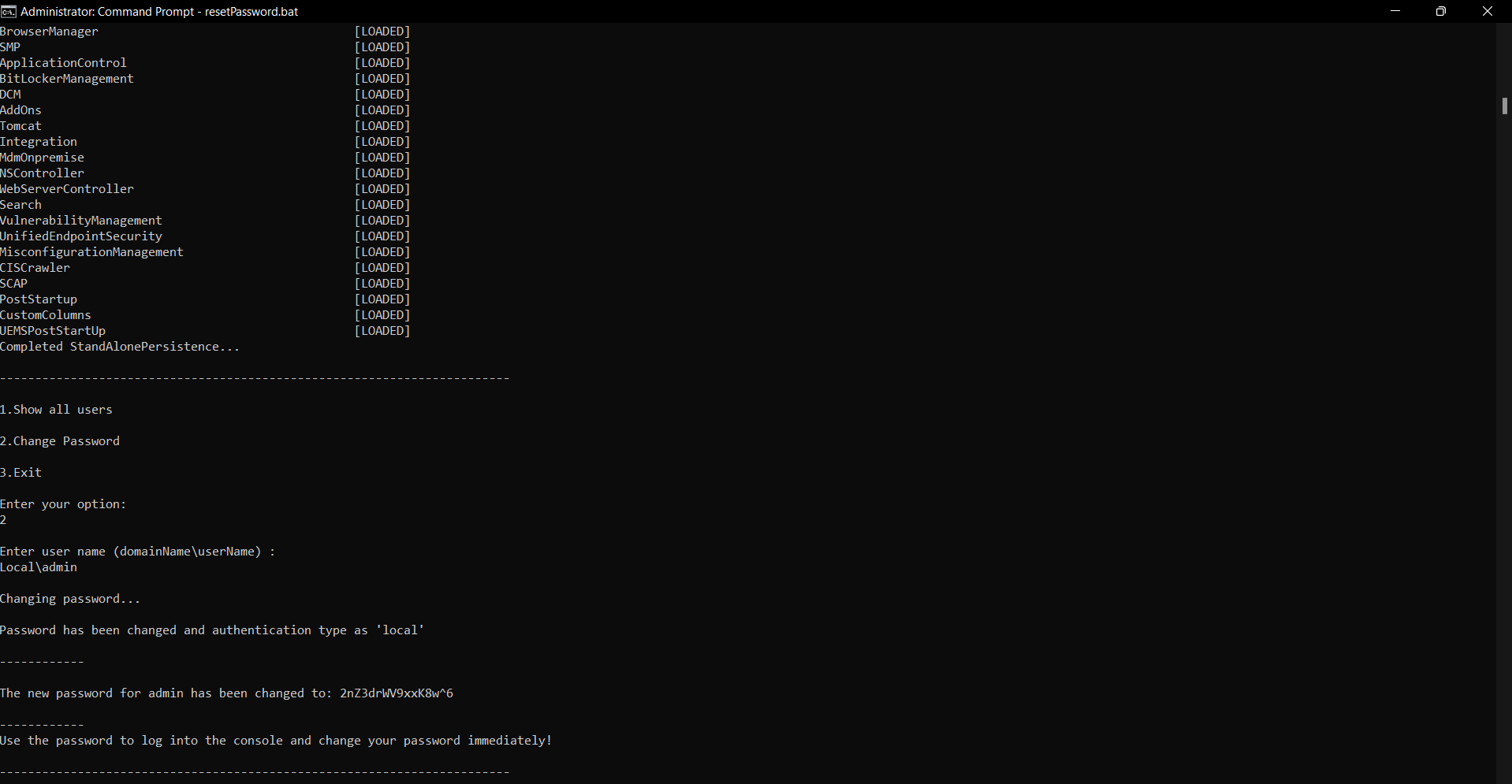
After resetting the password (for local admin user/Domain user), the login will be converted as local authentication. You can modify the authentication as Domain authentication using User Administration under Admin tab.